Showing posts with label HTML. Show all posts

Monday, April 29, 2013

TextMode Property in ASP.NET 4.5

With ASP.NET 4.5 we have been provided full HTML5 support. Taking the example of textbox, we have text mode property which can be set to different values such as :
a) SingleLine
b) Multiline
c) Password
d) Number
e) Range
f) Date
g) Color


Now, all these textmode property support varies from browser to browser. Some textmode property values are supported by IE or chrome.

So, let's start and see important textmode property values

1) Set the textmode property = "Password"

It would give you textbox, where you have to enter the Password but you would see that when you enter the characters in the textbox, they would be shown as "DOTS". Please see below image


Also, if enter the character as 'abc' rather than entering the complete email address, then it provides me alert to 'Enter the email address'. Below is the image


2) Setting the textmode property="URL"
Below is the code
<asp:TextBox ID="txtUrl" runat="server" TextMode="Url" ></asp:TextBox>

However, i don't enter the URL in correct format, it would display the error as below
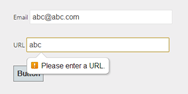


3) Setting the textmode property="Range"
<asp:TextBox ID="txtRange" runat="server" TextMode="Range" ></asp:TextBox>


4) Setting the textmode peoperty="Number"
 <asp:TextBox ID="txtNumber" runat="server" TextMode="Number"  ></asp:TextBox>


This means that in this textbox we can only enter numbers. However, if one enters characters it would give alert message like below


5)  Setting the textmode peoperty="Date"
 <asp:TextBox ID="txtDate" runat="server" TextMode="Date"  ></asp:TextBox>
This would give option to enter the date from calendar.


6 )  Setting the textmode peoperty="Color"
<asp:TextBox ID="txtColor" runat="server" TextMode="Color"  ></asp:TextBox>

This would give option to select color like below


Hope this article of mine gives you clear idea of textmode property of textbox.


Sunday, September 30, 2012

HTML5 New Attributes

HTML5 has added new attributes.Today, we would have brief overview of all the new attributes and elements added to HTML5.

Before moving ahead, to enable HTML5 on your web page, you need to add following line of code in HTML side


PLACEHOLDER Attribute
Placeholder attributes gives the watermark to the elements. So, this in turn tells you what we are expecting from the user and user too knows what needs to be entered in the textbox.

HTML to be added to design view to enable placeholder for textbox


Below is the final output you would see


REQUIRED Attribute
HTML5 has added new attribute named as 'required'. Setting this attribute makes the textbox a mandatory field and that cannot be left empty.
With addition of required attribute, you now don't have to write additional javascript to check whether the field is empty or not. Furthermore, if the field is left empty it alerts the user with message to fill out that particular field.

Lets see what needs to be done to get this feature in our application. Please add the following text in your design/HTML side


Below is the screenshot of what will be shown to user if the textbox is left empty and we simply click Submit button


Hope this article gives to some overview of new HTML5 attributes.


Friday, September 7, 2012

New HTML5 snippets


ASP.NET 4.5 added support for HTML5 snippets.
HTML5 introduced more than 25 new semantic tags. Visual Studio already had IntelliSense support for these tags, but Visual Studio 2012 makes it faster and easier to write markup by adding some corresponding snippets, like the ones for the audio and video tags.
To invoke the snippet, press Tab twice when the element is selected in IntelliSense:

 <audio controls="controls">
            <source src="file.mp3" type="audio/mp3" />
            <source src="file.ogg" type="audio/ogg" />
  </audio>


This produces a snippet that you can customize.

Automatic renaming of matching tag when you rename an opening or closing tag

If you rename an HTML element (for example, you change a div tag to be a header tag), the corresponding opening or closing tag also changes in real time.
   <heade>
        <audio controls="controls">
            <source src="file.mp3" type="audio/mp3" />
            <source src="file.ogg" type="audio/ogg" />
        </audio>
    </heade>

This helps avoid the error where you forget to change a closing tag or change the wrong one.

Smart indent

When you press Enter while inside an empty HTML element, the editor will put the insertion point in the right place:
If you press Enter in this location, the closing tag is moved down and indented to match the opening tag. The insertion point is also indented:

Hope you liked this blog.

Till the time enjoy your life and coding !!